Can Google Family Link Reward Learning? What It Can Do
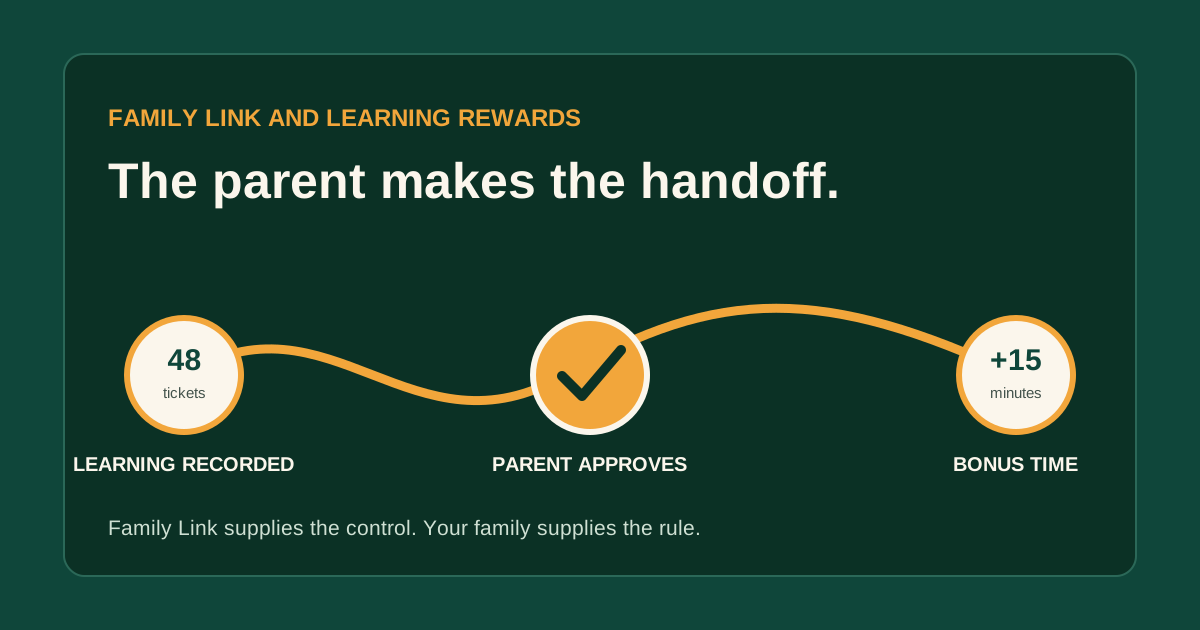
Google Family Link cannot automatically reward a child for finishing math, homework, or another learning task. It can set daily and app limits, schedule restricted time, block or allow apps, and let a parent grant bonus time for that day. To connect learning with extra screen time, keep a separate record of the completed work, have a parent approve the exchange, and change Bonus time manually in Family Link.
What can Google Family Link actually do with screen time?
Google Family Link can manage when a supervised Android device or Chromebook is available and how long many apps may be used. Current Google For Families documentation describes daily limits, weekly schedules, remote device locks, app-specific limits, blocked apps, allowed apps, unlimited-time apps, downtime or school-time schedules, and bonus time.
Those controls are useful. They don't form a learning rewards system. Family Link has no rule builder that says “after ten correct math answers, add fifteen minutes,” and it doesn't read a homework checklist, a school gradebook, or a third-party learning app's completion event.
Google says app limits are available on Android 7 and later and ChromeOS 83 and later. System apps cannot receive app limits. Device and account configuration still matter, so check the current Google For Families screen-time instructions on the devices your child actually uses.
Does Family Link have a built-in rewards system?
Family Link does not have a built-in points, chores, homework, or learning rewards ledger. Its Bonus time control is a parent-issued adjustment to the current day's screen allowance.
Family Link can deliver the extra minutes after a parent decides they were earned. Another method has to record the work, calculate the reward, and show whether the child has enough credit.
If your family wants learning to earn tickets, Parent Prize Portal's worked example shows a separate system in which connected learning activity changes a visible ticket balance and the parent sets the prize. Family Link can then remain the device-control layer.
How does Family Link bonus time work?
Family Link bonus time adds or removes time for the current day without changing the normal daily limit, downtime, or school-time schedule. Google says a parent can add it while the child's Android device is locked or close to locking.
In the Family Link parent app, the current documented path is:
- Select the child.
- Open Screen time.
- Under the child's device name, choose Bonus time.
- Increase, decrease, or enter the time.
- Tap Done.
Treat bonus time as a manual handoff. The parent checks the agreed learning evidence, confirms the exchange, and enters the minutes. Write the rate down so the answer doesn't change with the parent's mood or the child's persistence.
How can a child earn screen time by doing math on Android?
A child can earn Android screen time through a three-step family rule: the learning app records the work, the parent-facing system confirms the earned credit, and the parent grants Family Link bonus time. Keep each step visible so the child knows what happened.
Here is an illustrative setup using Parent Prize Portal's standard ticket arithmetic of one ticket per correct answer and one ticket lost per wrong answer:
| Math session | Correct | Wrong | Net tickets | Running total |
|---|---|---|---|---|
| Monday | 18 | 2 | 16 | 16 |
| Wednesday | 17 | 1 | 16 | 32 |
| Friday | 20 | 4 | 16 | 48 |
The parent prices 15 minutes of bonus screen time at 48 tickets. After Friday's session, the child requests the reward, the parent approves it, and the parent adds 15 minutes in Family Link. This table is an example rather than a promise that every family should use that rate.
The exchange has two checkpoints. The learning system verifies the ticket balance. The adult decides when the time fits the day, which prevents a late-night practice session from quietly extending a device past bedtime.
Which Family Link settings can interfere with bonus time?
Family Link settings can overlap in ways that change what a child experiences, so test the rule before promising a reward. Daily limits, app limits, device locks, downtime, school time, and unlimited-time apps each control a different part of access.
| Control | What Google says it does | Reward-system implication |
|---|---|---|
| Daily limit | Limits total use for a device that day | Bonus time can extend the day without editing the weekly baseline |
| App limit | Limits a selected app across the child's Android and ChromeOS devices | Extra device time may not increase an app whose own limit is already reached |
| Downtime or school time | Restricts access on a schedule | Keep sleep and school boundaries fixed unless the family explicitly agrees otherwise |
| Unlimited-time app | Does not count against the daily limit | Do not promise bonus time for an app already treated as unlimited |
| Manual lock | Locks the device | Google documents separate settings for whether unlimited-time apps remain available |
Google also notes that a daily limit applies to each Android device or Chromebook. Its example says a two-hour limit gives two hours on each device. A child with both a phone and Chromebook may therefore have more total access than the parent expected.
What is a fair screen-time exchange rate for learning?
A fair exchange rate is small, written in advance, and affordable within the child's sleep, school, movement, and family schedule. Start with one reward, such as 15 minutes for 48 tickets, and watch one week before changing it.
Don't convert every correct answer directly into a minute. The device reward can quickly grow larger than the learning session, which encourages fast, careless work. A fixed ticket price lets accuracy and repeated sessions matter while keeping the screen-time reward bounded.
A written screen-time contract can hold the baseline limit, eligible apps, reward price, latest redemption time, and what happens when the device is unavailable. Keep already-earned tickets available for another listed reward when bonus time cannot fit that day.
How should I test the setup before offering it?
Test the setup by running one pretend redemption on the child's real device. Check the learning record, approve the reward, add Family Link bonus time, and open the intended app.
Confirm four details: the minutes appear, the intended app is not separately blocked, bedtime remains protected, and the child can see when the time ends. The first-tablet limits guide can help you review the device before adding a reward rule.
Tell the child that the adult step is part of the system. Family Link may need a connection, the device may be away from home, or the extra time may need to wait until the next eligible period. The child should know what happens when that handoff is delayed.
Frequently asked questions
Can Family Link add bonus time automatically after homework?
No. Family Link lets a parent add bonus time manually, but its documented controls do not include homework detection or an automatic learning-to-time rule.
Does bonus time permanently change the daily limit?
No. Google describes bonus time as extra time for the day that does not require changing the daily limit, downtime, or school-time schedule.
Can bonus time override an app limit?
Do not assume it will. Bonus time extends device availability, while an app-specific limit is a separate control. Test the intended app before offering the exchange.
Can an iPhone parent manage a child's Android device?
Yes. Google's parental-controls documentation says parents can install Family Link on an iPhone or iPad to manage a child's supervised devices remotely.